If you have been provided an activation link, this is linked to a TeamViewer license and you will need to do the following steps so you and your colleagues can access TeamViewer and log Support tickets
- Create Your Own Account and Activate your license
- Set up your company
- Add your colleagues
- Assign your colleagues licenses
1. Create Your Primary Admin Account and Activate your license
When you click the activation link provided, you can login to your account if you have already setup a TeamViewer Account, or choose to create a new account. You should use your work email address if configuring for colleagues to use the provided license.
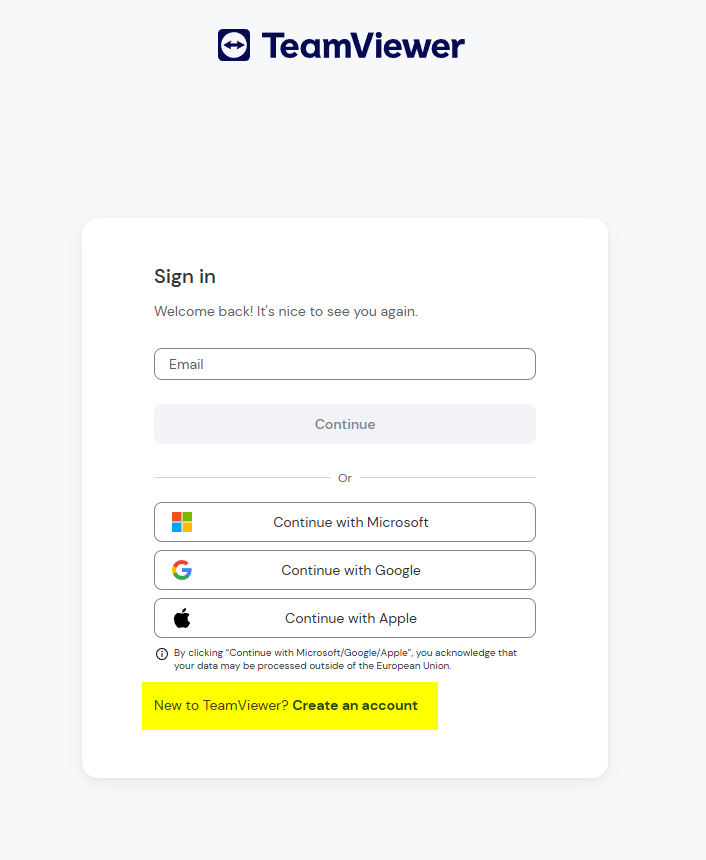
You will be sent an email to confirm the setup of your new account.
2. Set up your company
The following shows how to set up your company, Use the official company name.
3. Add Your Colleagues
You can do this with a special link that can be sent to multiple colleagues as required.
Accept their pending requests
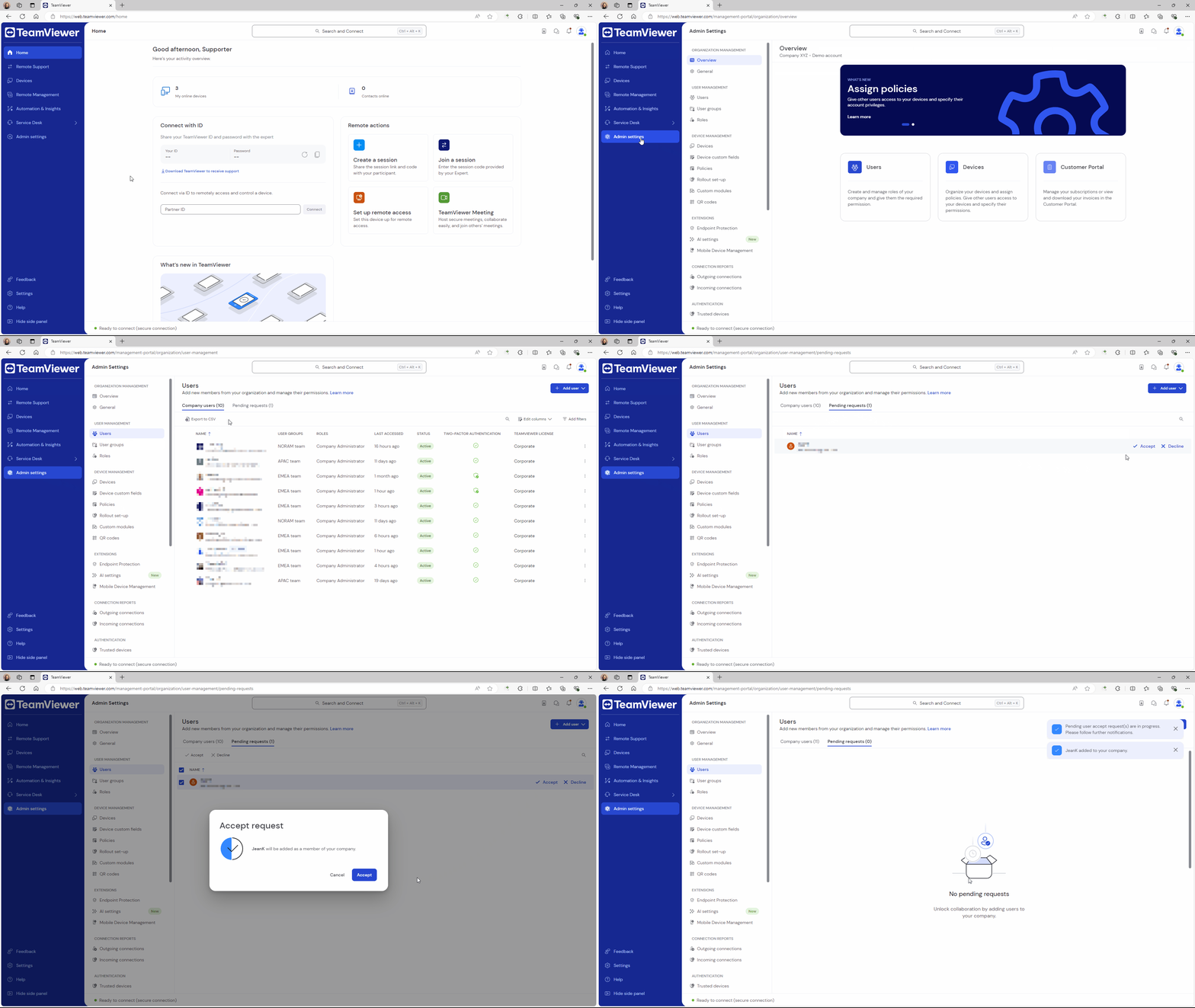
- Click Admin settings and within the User management section, click Users.
- Go to the Pending requests tab. You'll see the user request in the list. Click Accept and confirm by clicking Accept again.
4. Assign licenses and roles to your colleagues
You will then need to assign the company license to each of your colleagues.
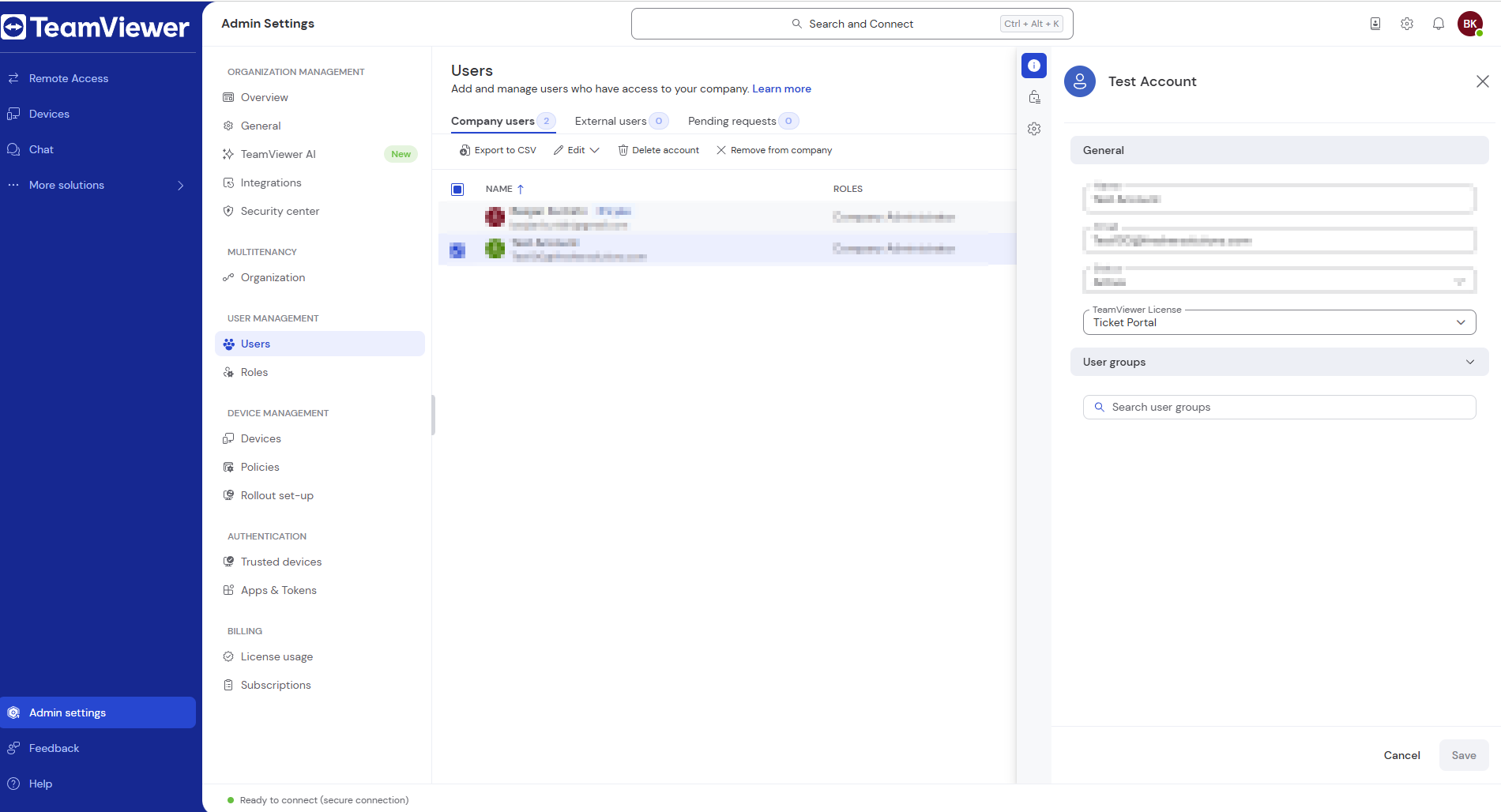
- Click on the user name you wish to change the license and role which displays the side menu.
- Go to Licenses, and select the Ticket Portal license
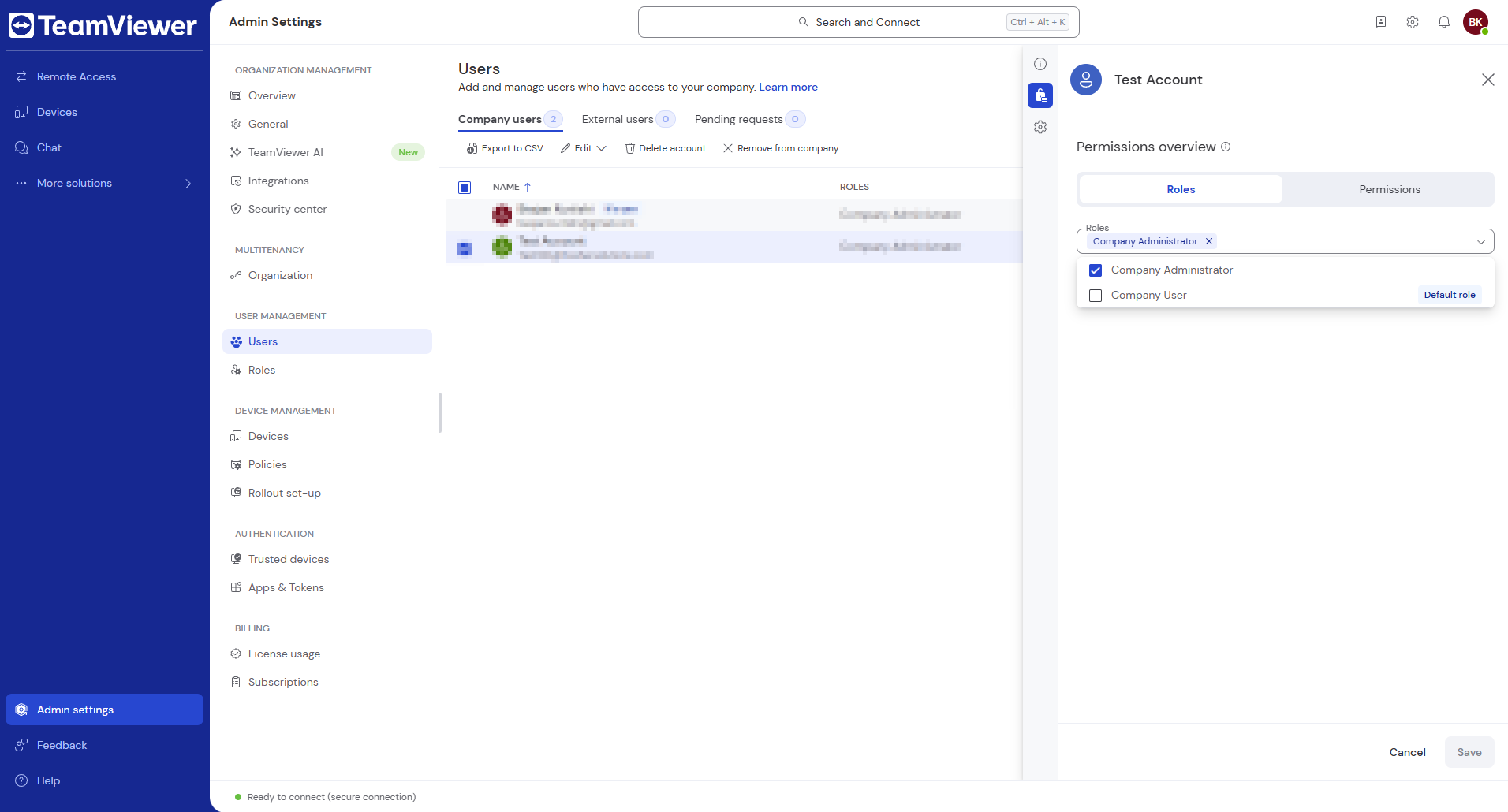
- Select the lock icon (Permissions Overview)
- Select the appropriate role (Company Administrators can add and approve other users)
- Click Save.
And that's it, you and your colleagues are now set up and ready to go.
Starting on Monday, July 27th, 2026, you can start using our unified Ticket Portal at https://support.teamviewer.com.
Important note: Until that date, please continue using the 1E support portal for updates or new requests.
Was this article helpful?
That’s Great!
Thank you for your feedback
Sorry! We couldn't be helpful
Thank you for your feedback
Feedback sent
We appreciate your effort and will try to fix the article